How to see your followers on LinkedIn (profile and company Page)

Photo by Pavel Danilyuk on Pexels
LinkedIn has two kinds of audience: connections and followers. They overlap more than most people expect, which is why your follower number is often bigger than you think. LinkedIn also keeps your personal followers and your company Page followers in completely different places.
This guide shows you where to see your followers on a computer and in the app, how to check your follower count and growth, how to control who can follow you and how Page admins can see who follows a company Page. It is based on LinkedIn's own Help pages, which are linked as we go.
The short answer
- Your followers (computer): click My Network, then Manage my network, then Following & followers, then the Followers tab.
- Your follower count and growth: go to your profile, find the Analytics section and click Show all, then Audience analytics.
- Your connections follow you automatically. LinkedIn says your 1st-degree connections automatically follow your posts, although they can unfollow later without disconnecting.
- A company Page's followers aren't in your personal list. Page admins see them under Analytics, then Followers, in the Page admin view.

Followers and connections are not the same
LinkedIn's Follow and connect on LinkedIn page explains the difference. A connection is two-way: you both become 1st-degree connections, you can message each other directly and you can see each other's posts in your feeds. A follower is one-way: they can see your public posts and articles in their feed, but they don't become part of your network.
The part that surprises people is the overlap. LinkedIn says that your 1st-degree connections automatically follow your posts and articles, and that anyone can follow you, even if they're not in your network (Manage who can follow you settings). So your follower number is roughly your connections plus everyone else who has chosen to follow you. It can be a little lower if some connections have unfollowed you, which LinkedIn lets them do without disconnecting.
LinkedIn also sends you a notification when someone follows you who isn't a connection (View your followers).
How to see your followers on a computer
These are the steps from LinkedIn's View your followers page:
- Click the My Network icon at the top of your LinkedIn homepage.
- Click the Manage my network dropdown on the left.
- Click Following & followers.
- Click the Followers tab near the top of the page.
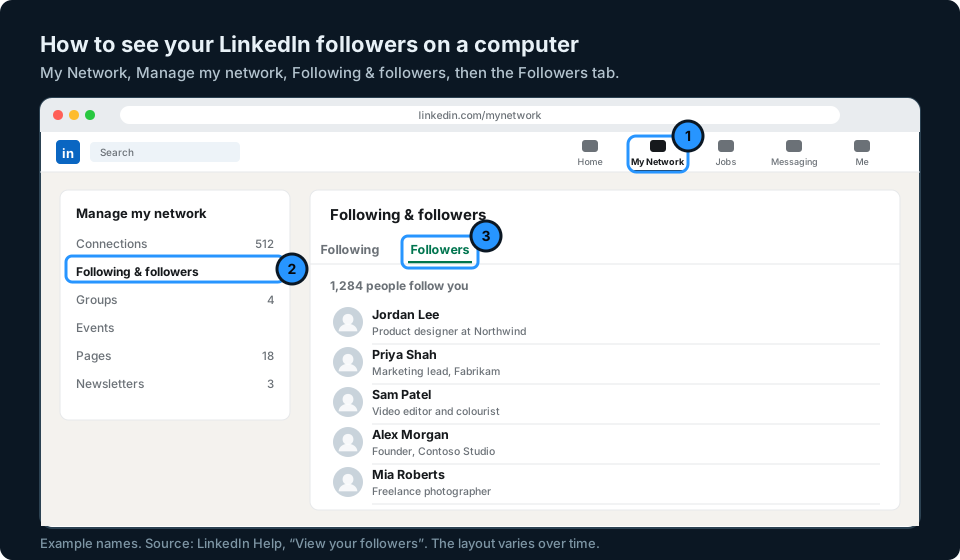
The Following tab on the same page shows the accounts you follow, which is a different list.
How to see your followers in the LinkedIn app
LinkedIn's help page only gives the steps for a computer, and the app's menus change from time to time. Try My Network at the bottom of the app, then Manage my network, and look for Following & followers. If you can't find it, open linkedin.com in your phone's browser and use the computer steps above. You may need to switch your browser to the desktop site to see the same menus.
How to see how many followers you have
Your follower total and how it's changing are in your creator analytics. LinkedIn says all members have access to them, so you don't need a special account (View your creator analytics).
- On a computer, click Me, then View Profile. In the app, tap your profile photo, then tap it again to open your profile.
- Scroll to the Analytics section and select Show all.
- Choose Audience analytics.
At the top you'll see your Total followers. Below it, a New followers graph shows growth over the date range you choose, and Top demographics shows the top five job titles, locations, industries, seniority levels, company sizes or companies among your followers. On a computer you can export it all to a spreadsheet with the Export button.
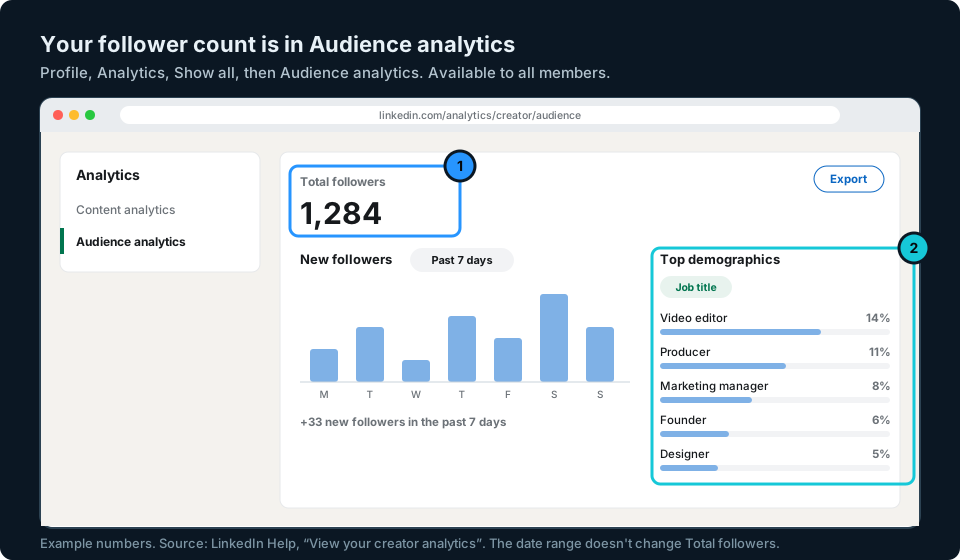
LinkedIn notes that the date range only changes the New followers graph and the demographics, not the Total followers count at the top.
How to control who can follow you
By default, anyone on LinkedIn can follow you. You can change that, and you can choose whether people see Follow or Connect as the main button on your profile. LinkedIn's Manage who can follow you settings page gives the steps:
- Computer: click Me, then Settings & Privacy, then Visibility. Under Visibility of your LinkedIn activity, click Followers.
- App: tap your profile photo, then Settings & Privacy, then the Visibility tab, then Followers.
- Under Who can follow you, choose Everyone on LinkedIn or Your connections.
- Under Make follow primary, turn the toggle on to show Follow as the main button on your profile, or off to show Connect.
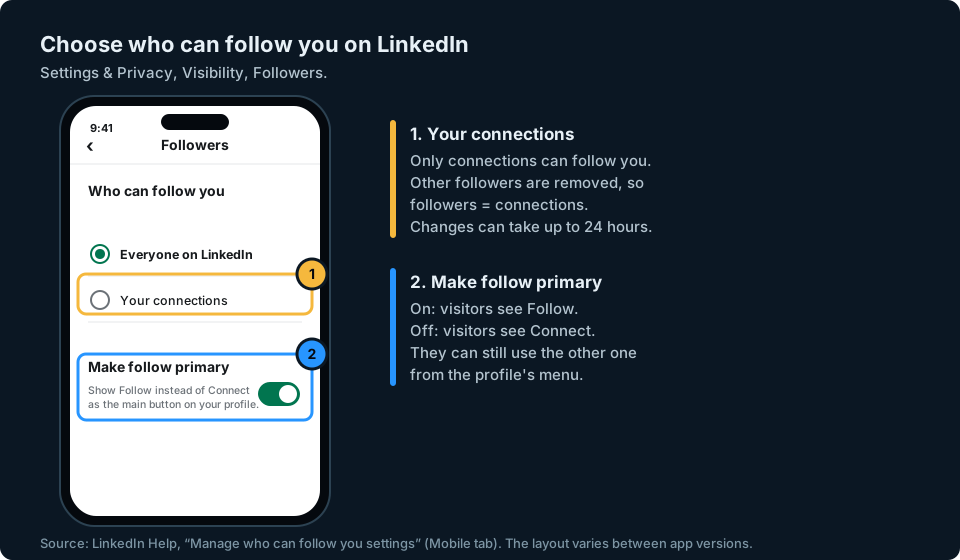
Be careful with Your connections. LinkedIn says followers outside your network will be removed and your follower number will become the same as your total connections. The Follow button next to your posts also disappears, and changes can take up to 24 hours.
How to see who follows your LinkedIn company Page
LinkedIn's personal Followers tab doesn't include your company Page. As LinkedIn puts it, you can't view the followers of your LinkedIn Page there (View your followers). Page admins use the Page's own analytics instead (Access your LinkedIn Page analytics):
- Go to your Page admin view.
- Click Analytics in the left menu.
- Click Followers.
According to LinkedIn's Follower analytics for your LinkedIn Page, you'll find:
- Follower highlights: how many members have followed your Page since it was created and how many new followers it gained in the last 365 days. The total is updated once a day.
- Follower metrics: how your follower number has changed over time, for the time range you choose.
- Follower demographics: a breakdown by location, seniority, job function, industry and company size.
- All followers: your current Page followers, most recent first, with where they work and when they followed. You can switch between People and Pages.
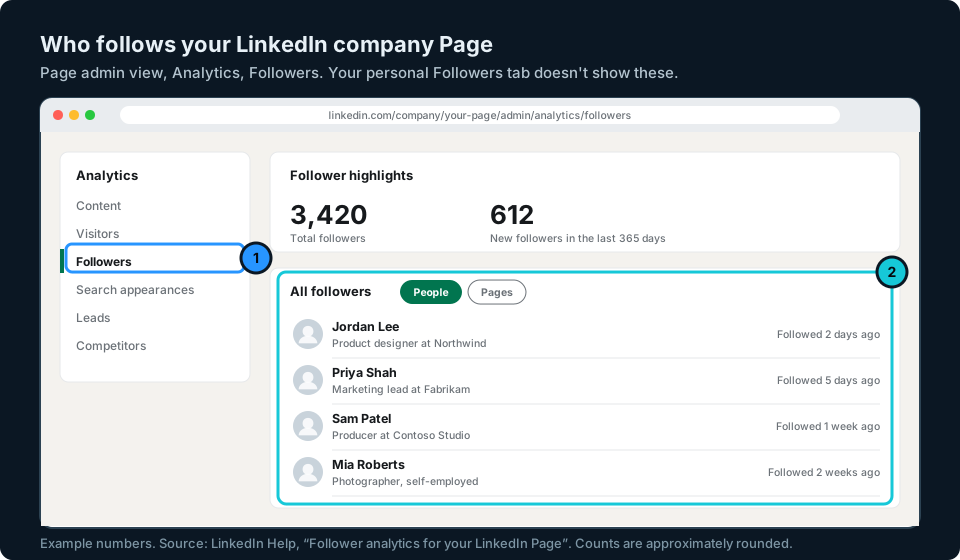
LinkedIn says the follower numbers here are approximately rounded and that inactive accounts, including restricted and hibernated ones, aren't counted. So the total may not match a count you make yourself.
Can you see who unfollowed you on LinkedIn?
No. LinkedIn notifies you when someone new follows you, but not when someone stops. Audience analytics shows how many new followers you gained over a period, not who left. If you want to spot people leaving, the only way is to compare your Followers list over time, which is only practical if you don't have many followers.
Keeping an eye on your audience
If LinkedIn is one of several places you post, checking each platform's numbers separately takes time, and it's hard to see whether your audience is growing overall.
That is the problem we are building GridStats to solve: your social audience numbers together on one screen on your iPhone, with how they have changed over 24 hours, 7 days and 30 days. LinkedIn is among the platforms we want to support, depending on the data LinkedIn makes available. If you want to hear when GridStats launches, sign up at the top of this page.
Frequently asked questions
Are LinkedIn connections the same as followers?
No, but they overlap. Your 1st-degree connections automatically follow your posts, so they count as followers. People can also follow you without connecting, so your follower number is usually higher than your connections.
Why do I have more followers than connections on LinkedIn?
Because your followers include your connections plus anyone else who has followed you. If you limit followers to your connections, the two numbers become the same.
Can I see who follows me on the LinkedIn app?
LinkedIn's help page only gives the computer steps. In the app, try My Network, then Manage my network, and look for Following & followers. If it isn't there, use linkedin.com in your phone's browser, switching to the desktop site if you need to.
How do I see how many followers I have on LinkedIn?
Open your profile, go to the Analytics section, select Show all and then Audience analytics. Total followers is at the top.
Can I see someone else's followers on LinkedIn?
LinkedIn's help pages only describe seeing your own followers and, if you're an admin, a company Page's followers. Many profiles do show a follower count.
Does LinkedIn tell you when someone follows you?
Yes, when the person isn't one of your connections. LinkedIn sends a notification whenever someone who isn't a connection follows you.