How to see your subscribers on YouTube (and why you cannot see them all)

Photo by Vitaly Gariev on Pexels
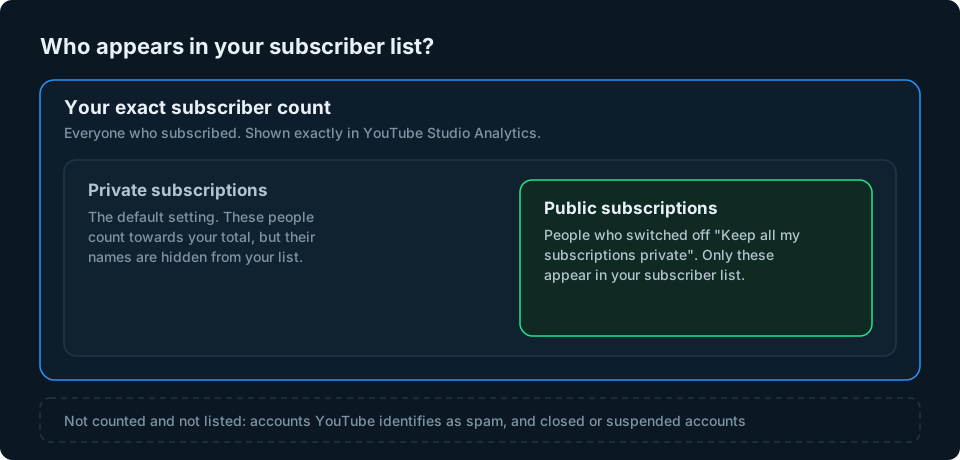
Say your channel has 2,400 subscribers, you open your subscriber list and it shows a few dozen names. Nothing is broken. YouTube only shows you the people who have chosen to make their subscriptions public, and most people never change the setting, which is private by default.
This guide shows you where to find your subscribers on a computer and on your phone, why most of them stay hidden, how to see your exact subscriber count and what to do when the number goes down. Everything here is based on YouTube's own help pages, which are linked as we go.
The short answer
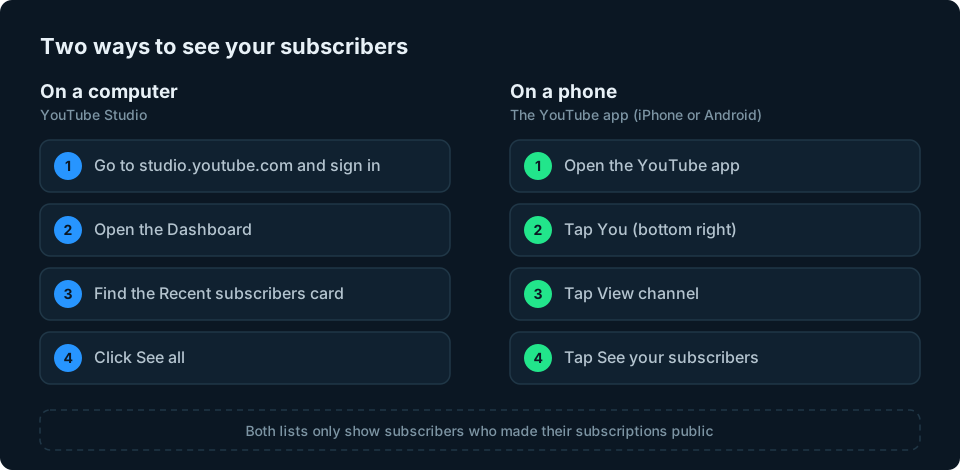
- On a computer: go to YouTube Studio, find the Recent subscribers card on the Dashboard and click See all.
- On a phone: open the YouTube app, tap You, then View channel, then See your subscribers.
- You will not see everyone. Only subscribers who have made their subscriptions public appear, and subscriptions are private unless someone changes the setting. Accounts that are suspended or flagged as spam are left out too.
- For your exact count, go to Analytics in YouTube Studio and use the realtime card. The number viewers see on your channel is shortened.
How to see your subscribers on a computer
- Go to studio.youtube.com and sign in with the account that owns the channel.
- On the Dashboard, find the Recent subscribers card.
- Click See all to expand the list of public subscribers.
- At the top of the list, change the time period if you want, or sort by subscriber count to see which of your subscribers have the biggest channels themselves.
The card starts with people who subscribed in the last 28 days, according to YouTube's help page on recent subscribers. Changing the time period shows more of your public subscribers, but it will never reveal the ones who keep their subscriptions private, so this is not a complete history of everyone who has subscribed. Sorting by subscriber count is a handy way to spot other creators in your audience.
How to see your subscribers on iPhone or Android
In the main YouTube app:
- Tap You in the bottom right.
- Tap View channel under your name.
- Tap See your subscribers under your channel name.
YouTube says only the channel owner can see this list and that it is sorted with the most recent subscribers first (YouTube Studio help for iPhone and iPad). The same steps work on Android.
To check your subscriber count on a phone, use the YouTube Studio app instead: tap Analytics in the bottom menu and look at the Realtime card on the Overview tab.
Why you cannot see all your subscribers
Every YouTube account has a setting called Keep all my subscriptions private. According to YouTube's privacy help page, it is on by default. While it is on, the person still counts towards your total, but their name does not appear in your subscriber list and other people cannot see which channels they follow.
So the list in YouTube Studio is only ever a sample: the subscribers who have switched that setting off. For many channels it is only a small part of the total. YouTube offers channel owners no way to see the rest.
There is one small exception. If someone takes part in a subscribers-only live chat, or comments where comments are limited to subscribers and members, other viewers can see that they are subscribed, even if their subscriptions are private.
If you are a viewer and want to change your own setting: on a computer, click your profile picture, go to Settings, then Privacy and turn Keep all my subscriptions private on or off.
How to see your exact subscriber count
The number on your channel page is shortened for viewers. You can see the exact figure in YouTube Studio:
- Open YouTube Studio and select Analytics in the left menu.
- On the Overview tab, find the realtime card.
- Click See live count to see your subscriber count and how it has changed.
Everyone else sees the shortened version. YouTube's subscriber count help page sets out how it is shortened at each size:
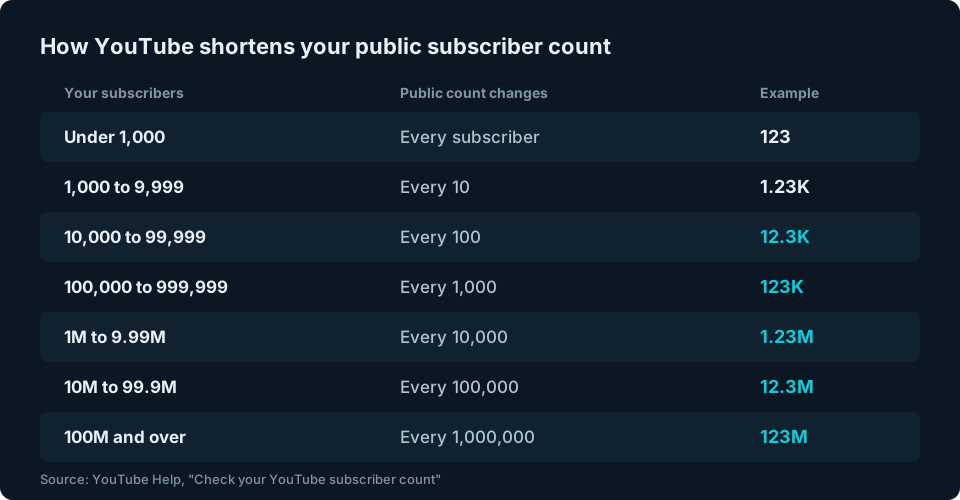
So a channel with 11,040 subscribers can gain 50 more and its public figure will not change, because at that size it only moves in steps of 100. It is also why sites like Social Blade cannot show exact daily gains for bigger channels. We compared what Social Blade and ViewStats showed for the same channel in our guide to Social Blade alternatives.
If you run several channels or accounts on other platforms, keeping track of all those numbers across different dashboards soon becomes a chore. That is one of the reasons we are building GridStats.
You cannot hide your subscriber count. YouTube removed that option in 2022 to make it harder for spammers to impersonate creators, as Search Engine Journal reported at the time.
Can you see who unsubscribed?
No. YouTube does not show the names of people who unsubscribe, and no list of former subscribers exists anywhere you can reach.
What you can see is how many you lost. In YouTube Studio, go to Analytics, click See more on any card and choose Subscription source at the top. As well as showing where people clicked Subscribe, this report includes subscriber losses, both from people unsubscribing and from closed or spam accounts being removed (YouTube help on subscription sources). If your channel had too little activity in the period you picked, the report may not appear.
Why your subscriber count went down
A falling count is not always people leaving. YouTube's recent subscribers help page explains the main reasons:

- Normal unsubscribes. Every channel gains and loses people all the time. A small drop on a quiet day is normal.
- Closed accounts. If an account is closed by its owner, or suspended or terminated by YouTube, it no longer counts towards your total.
- Spam removal. YouTube regularly removes subscribers it identifies as spam, such as those from bought subscriber services. YouTube says it shows an alert in YouTube Studio when it removes spam subscribers. Spam accounts are not unsubscribed, but they stop counting.
- Accidental unsubscribes. Some people tap Unsubscribe by mistake. YouTube now asks for confirmation before unsubscribing, except on iPhone and iPad.
YouTube also says it does not unsubscribe people from channels automatically. If your count changes in a way that looks far outside normal ups and downs, YouTube's help page has a link to report it.
If your follower counts are dropping on other platforms too, our guide on why you might be losing Instagram followers covers the same patterns.
Can you see someone else's subscribers?
You can see another channel's subscriber count (shortened, as above) on their channel page, but not who their subscribers are. Only the channel owner can see the subscriber list, and even they only see the public ones.
Public stats sites can show a channel's count over time, but not names. Our guide to Social Blade alternatives compares the main ones.
Be careful with apps that promise to show your subscribers
Some apps and websites claim to show you all your subscribers or who unsubscribed. They cannot see more than YouTube allows. YouTube's official API only lets a channel owner request a list of subscribers after signing in, and its documentation warns that the number returned may be limited. YouTube's help pages describe no way to see subscribers who keep their subscriptions private.
If a tool asks you to sign in with your Google account, check exactly what access it wants before you agree. YouTube Studio already shows you everything you are able to see.
What else your subscriber data can tell you
The list of names is the least useful part. In YouTube Studio's Analytics, these are worth a look (YouTube help on understanding your audience):
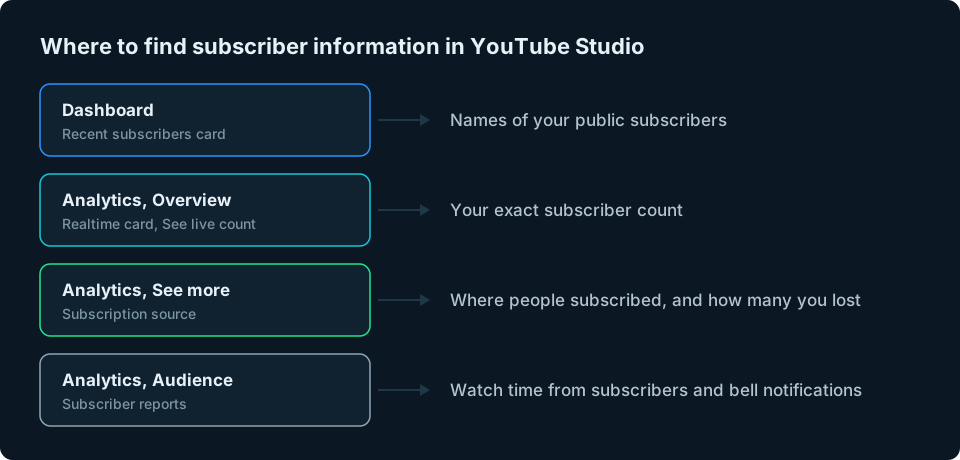
- Subscription source shows which videos, pages and features turned viewers into subscribers. If one video brings in most of your subscribers, that tells you what to make more of.
- Watch time from subscribers (on the Audience tab) shows what share of your watch time comes from subscribers compared with everyone else.
- Subscriber bell notifications (also on the Audience tab) shows what share of your subscribers get notified when you post.
Frequently asked questions
Why can I not see all my subscribers on YouTube?
Because YouTube subscriptions are private by default. Your subscriber list only shows people who have chosen to make their subscriptions public. Everyone still counts towards your total.
How do I see who subscribed to me on my phone?
Open the YouTube app, tap You, then View channel, then See your subscribers. The list shows public subscribers, newest first.
Can I see who unsubscribed from my YouTube channel?
No. YouTube does not show who unsubscribed. The Subscription source report in YouTube Studio Analytics shows how many subscribers you lost, but not who they were.
Why did my YouTube subscriber count go down?
Usually because of normal unsubscribes, closed or suspended accounts no longer counting or YouTube removing spam subscribers. YouTube says it shows an alert in YouTube Studio when it removes spam subscribers.
Can I see who subscribed after watching one of my Shorts?
Not by name. YouTube Studio Analytics can show how many subscribers came from each type of content, including Shorts, and the Subscription source report shows which videos brought people in, but there is no list of the people who subscribed because of a particular Short.
Can I hide my subscriber count on YouTube?
No. YouTube removed the option to hide subscriber counts in 2022. Viewers see a shortened version of your count, and you see the exact number in YouTube Studio.
The bottom line
To see your subscribers, use the Recent subscribers card in YouTube Studio on a computer, or You, View channel, See your subscribers in the YouTube app. For the number that matters, your exact subscriber count and how it is changing, use the realtime card in YouTube Studio Analytics.
One habit worth adopting: check the Subscription source report once a month. Knowing which videos actually turn viewers into subscribers is far more useful than knowing their names.
If you also run accounts on Instagram, TikTok or Facebook, checking each app separately soon gets tedious. That is the problem we are building GridStats to solve: every account you run as a tile on one screen, showing your followers and subscribers and how they changed over the last day, week or month.