How to track your YouTube subscribers over time

Photo by Alena Darmel on Pexels
YouTube already tracks your subscribers over time for you, and it's free. Open YouTube Studio, go to Analytics and you can check your live count, see how many subscribers you gained or lost over a period you choose and, in the fuller reports, look at the figures day by day.
This guide shows you where each of those numbers lives, on a computer and on your phone. It also explains why the count on your channel page looks rounded, why your total sometimes drops overnight and how to keep a simple monthly record so you can see the bigger picture. Everything here is based on YouTube's own Help Centre, linked as we go.
The short answer
- Right now: in YouTube Studio, go to Analytics, then the Overview tab and find the Realtime card for your live subscriber count.
- Over time: the Audience tab shows your subscribers for the date range you choose.
- Day by day: open Advanced mode (or See more) under a report, choose the subscriber metrics available to you and switch the Date view to daily.
- Shortened public number: viewers see a shortened count, so Studio's live count is the place to check.
- Sudden drops: YouTube removes spam subscribers and closed accounts from your total, so a dip isn't always people leaving.

How to see your subscriber count right now
The quickest check is the Realtime card. These are the steps from YouTube's page Check your YouTube subscriber count:
- Sign in to YouTube Studio on a computer.
- In the left menu, select Analytics.
- On the Overview tab, find the Realtime card.
- Click See live count to view your subscriber count over time.
YouTube says the Realtime card shows your subscriber count alongside your top recent content, and the expanded report lets you compare how your videos did over the last 60 minutes and the last 48 hours (Get an overview of channel performance). For your subscriber total, use See live count. It's handy on the day you publish a video, when you want to check whether your total is changing.
One thing to know before you start: YouTube says it began gradually rolling out an updated YouTube Studio in July 2026, so your Analytics pages may look a little different from the descriptions here (Get started with YouTube Analytics).
How to see your YouTube subscriber growth over time
For anything longer than a couple of days, use the Audience tab. YouTube says its key metrics include subscribers, which it defines as the number of viewers who have subscribed to your channel (Understand your YouTube audience).
- Sign in to YouTube Studio.
- Select Analytics in the left menu.
- Select Audience from the top menu.
- Use the date menu to choose the period you want to look at.
- Look at the Subscribers figure to see subscriber activity during that period. This isn't necessarily your channel's running total.
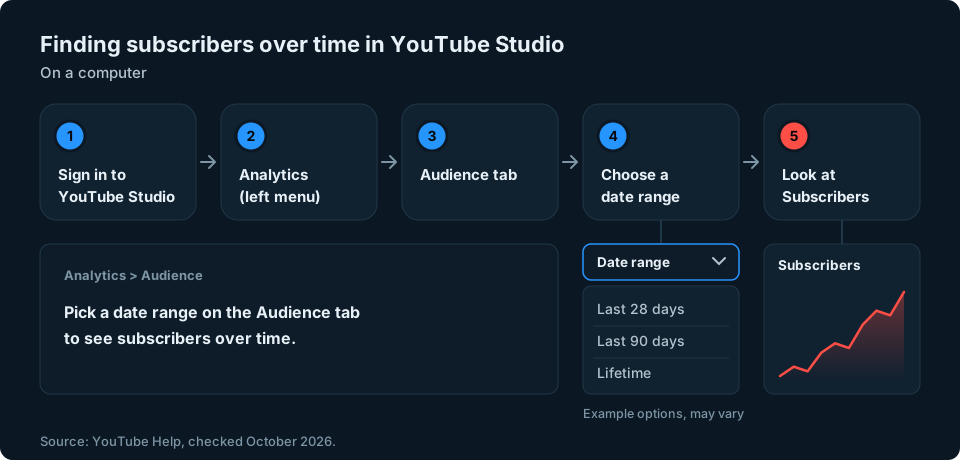
Which range should you pick? It depends on the question you're asking. If your date menu offers these options:
- Last 28 days is good for a regular check-in and for seeing how your latest videos landed.
- Last 90 days smooths out the ups and downs and shows whether a new posting schedule is working.
- Lifetime, if it's offered, lets you look back across your channel's whole history.
A Subscribers figure for a chosen period measures subscriber activity during that period, not necessarily your total number of subscribers. To check your current total, use See live count on the Realtime card.
How to see subscribers gained and lost each day
The Audience tab gives you a summary. For more detail about when changes happened, open the fuller report. The figures can help you investigate a change, although they won't tell you why people subscribed or left. YouTube's page Learn how to use Advanced mode for analytics reports gives the steps:
- Sign in to YouTube Studio and select Analytics from the left menu.
- Under a report, click Advanced mode or See more.
- Use the controls at the top to change the dates for the report.
- Use Metrics to change or add metrics in the chart and table. Check which subscriber metrics are available. Google documents subscribers gained and subscribers lost as YouTube Analytics metrics, but YouTube's Help Centre doesn't confirm that both appear in every Studio report.
- Use the Date view option to switch between daily, weekly, monthly and yearly views.

YouTube's help pages don't name these two metrics, but Google's developer documentation for YouTube Analytics describes subscribers gained as the number of times people subscribed to your channel, and subscribers lost as the number of times people unsubscribed (YouTube Analytics metrics). The names you see in Studio may differ slightly. Where both are available, comparing them shows activity that the net change alone would hide. A day with many subscribers gained and lost is different from a quiet day with the same net change.
You can also save the report. YouTube says you can select Export current view and choose a file format, although downloaded reports are limited to 500 rows. That's plenty for a year of daily figures.
How to check on your phone
You can follow your numbers from the YouTube Studio app too. YouTube gives these steps for iPhone and iPad on its subscriber count help page:
- Open the YouTube Studio app.
- From the bottom menu, tap Analytics.
- On the Overview tab, find the Realtime card.
- Tap the Realtime card for more detailed metrics.
In the main YouTube app, tap You, then View channel, then See your subscribers. YouTube notes that some reports may not be available on mobile, so use a computer for Advanced mode and exports.
Why your public subscriber count is rounded
Once you pass 1,000 subscribers, YouTube shows viewers a shortened version of your count. YouTube's subscriber count page gives examples: 1,234 shows as 1.23K, 12,345 shows as 12.3K and 1,234,567 shows as 1.23M.
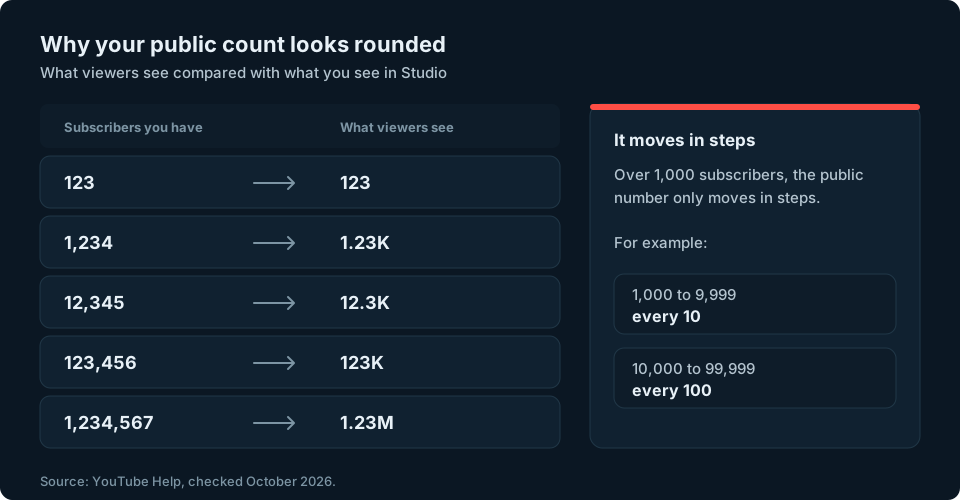
That means the public number only moves in steps. Between 1,000 and 9,999 it updates every 10 subscribers, between 10,000 and 99,999 every 100 and the steps get bigger from there. So if your channel page says 12.3K for weeks, you may still be growing. For tracking, use the live count in YouTube Studio rather than your public channel page. Our guide to seeing your subscribers on YouTube explains what you can and can't see about the people behind that number.
Why your subscriber count can suddenly drop
A drop can be worrying, but YouTube says changes are normal and gives three reasons in Check your recent subscribers:
- People unsubscribe. This shows up as subscribers lost in Analytics.
- Spam subscribers are removed. YouTube says it regularly verifies accounts. Subscribers it identifies as spam stop counting towards your total, and you'll see an alert in Studio when this happens.
- Closed accounts are removed. Subscribers whose accounts have been closed also stop counting.
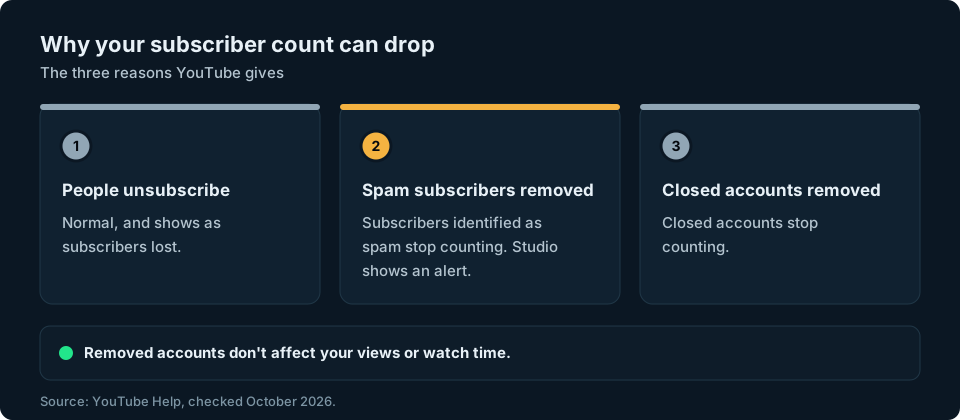
YouTube says removed accounts don't affect your views or watch time, and it may correct Analytics figures to keep them consistent. If a change looks unusual and none of these reasons fits, YouTube suggests reporting it through its feedback form.
Keep your own monthly YouTube subscriber tracker
YouTube Analytics is good, but a short record of your own adds the one thing it can't: what was going on at the time. It takes five minutes a month.
- On the 1st of each month, open the Realtime card in YouTube Studio and note your total.
- Work out the change from last month.
- Add a one-line note: videos you posted, a collaboration, a spam clean-up alert or a quiet month.
- Keep it in a spreadsheet, a notes app or a notebook.
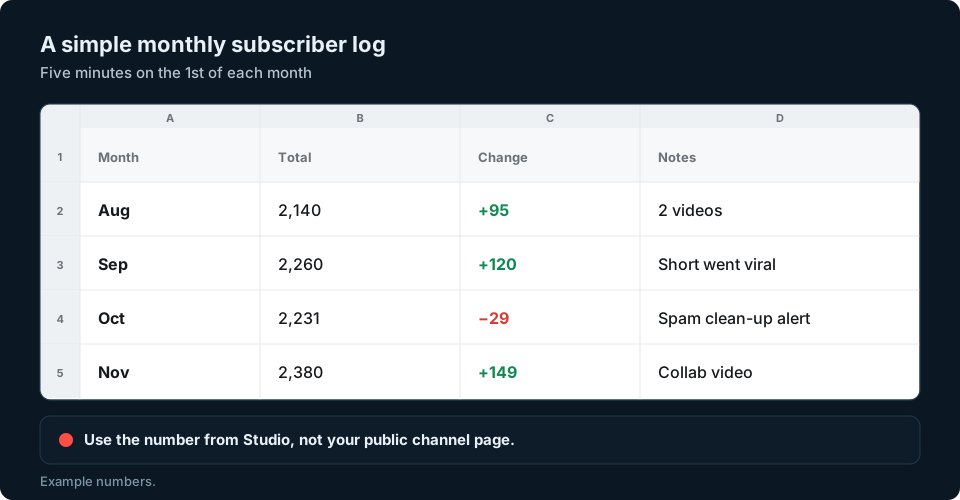
After six months, you may start to spot patterns between what you publish and changes in your subscriber numbers. They won't prove which videos caused the growth, but they show you what to look into.
Seeing the bigger picture
Most people who search for a YouTube tracker want to know one thing: is my channel growing, and what is making it grow? YouTube Studio answers that for free, as long as you check the right report and keep a note of what you did. If you're weighing up other ways to follow your numbers, our guide to other follower tracking tools covers what to look for.
If YouTube is only one of the places you post, checking each platform separately soon gets tiring. We're working on something to make that easier, so sign up at the top of this page to hear when it's ready.
Frequently asked questions
How do I see my YouTube subscriber history?
Open YouTube Studio, select Analytics, then the Audience tab and choose a date range. For a day-by-day view, open Advanced mode or See more under a report.
Can I see how many subscribers I lost on YouTube?
Often, yes. Google's developer documentation describes a subscribers lost metric for YouTube Analytics, but YouTube's Help Centre doesn't guarantee it appears in every Studio report. In Advanced mode, check which subscriber metrics are available, and switch between daily, weekly and monthly views.
Why did I lose subscribers on YouTube overnight?
YouTube says drops can come from people unsubscribing, the removal of spam subscribers or the removal of closed accounts. If spam subscribers were removed, you'll see an alert in YouTube Studio.
Why is my YouTube subscriber count not going up?
If you have more than 1,000 subscribers, your public count is shortened and only changes in steps, such as every 10 or every 100 subscribers. Check the live count in YouTube Studio to see the real change.
Can I track my YouTube subscribers on my phone?
Yes. In the YouTube Studio app, tap Analytics in the bottom menu, then tap the Realtime card on the Overview tab. Some reports, such as Advanced mode, are easier to use on a computer.
Does YouTube remove fake subscribers?
Yes. YouTube says subscribers identified as spam don't count towards your total. It doesn't unsubscribe them, but they're removed from your subscriber count.